| Updated: 8 June, 2023 |
|

|
 |
Getting Started
1. Introduction2. Switching to GNU/Linux
3. Getting openSUSE
4. Installation
The Fundamentals
5. KDE Plasma Workspace6. Apps for Common Tasks
7. Security and Root
8. Terminal
9. Admin. Settings (YaST)
10. Installing Software
11. Software Repositories
Setup
12. MS Windows Interop13. Multimedia Codecs
14. Graphics Drivers
15. Wifi
Appendix
A: Help and DocsB: Games
C. Under the Hood
D. History and Background
E: Getting Involved
GNU Free Documentation License
15. Wifi Driver Installation
Most of the time wifi will just work out of the box. In these cases you'll be able to configure your wireless card using the NetworkManagement widget which you should find running in your system tray.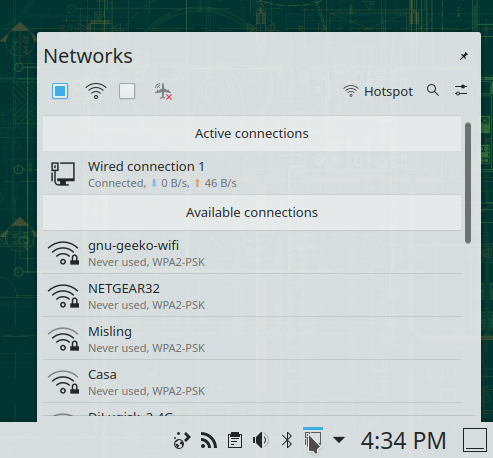
15.1 Find Out Which Chipset
If your wireless card isn't supported out of the box, chances are you can make it work fairly easily.The first step is running this command to find out which chipset is on the card. The chipset is what matters, the make and model of the device is basically of no importance.
hwinfo --wlan --short
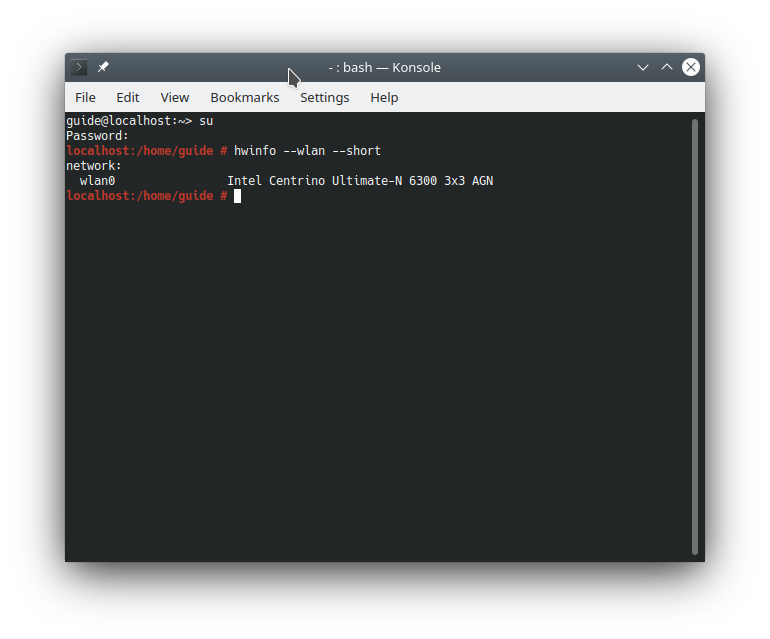
Now that you know which chipset is on your card, you can start figuring out what is required to make the chipset work in openSUSE - usually you'll just need to install a driver and/or some firmware.
15.2 Recent Broadcom Chipset
The Linux kernel comes with the brcm80211 driver by default. This driver supports bcm4313, bcm43224, bcm43224, bcm43225, bcm4329, bcm4330, bcm4334, bcm43241, bcm43235 (>= rev 3), bcm43236 (>= rev 3), bcm43238 (>= rev 3), bcm43143, bcm43242.If you experience problems with the above driver, and you have one of the following chipsets: bcm4312, bcm4313, bcm4321, bcm4322, bcm43224, bcm43225, bcm43227, bcm43228, you may want to try installing the proprietary broadcom-wl driver (package: broadcom-wl) available in the Packman software repository.
15.3 Older Broadcom Chipset
If you have an older Broadcom chip supported by the, free, reverse-engineered b43 driver, i.e.: bcm4303, bcm4306, bcm4309, bcm4311, bcm4318, you only need to install the firmware. This is automated by simply running this command and rebooting afterwards (make sure the package b43-fwcutter is installed and that you are online while running the command):
install_bcm43xx_firmware
15.4 Atheros Chipset
Atheros are working with the Linux-kernel developers towards providing support for all their wireless chipsets in the mainline Linux-kernel, via the ath5k and ath9k drivers, so most atheros cards should just work.15.5 Intel Chipset
Intel are cooperating quite well with the Linux-kernel developers and all Intel wifi chips should just work. |
 |
Send your comments via e-mail to admin [at] opensuse-guide.org